OBS Scene Timer
In this article I'll show how to add a nice timer for remote OBS. It will show how long since scene started and how much time remains for videos 🙏

Installing Timer
First let's install the software. You can googe "OBS Scene Timer" or use this url: https://obsproject.com/forum/resources/obs-scene-timer.920/
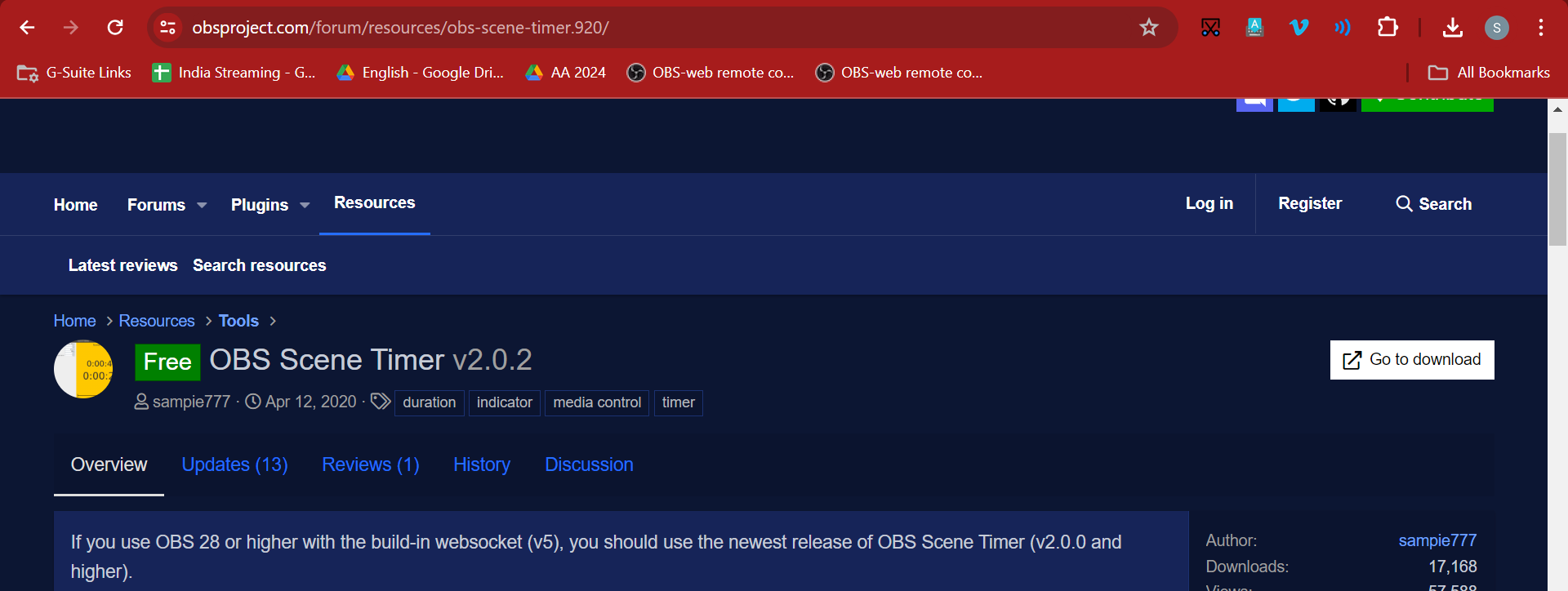
After oppening this page you need to click on "Go to download" in the right top corner.
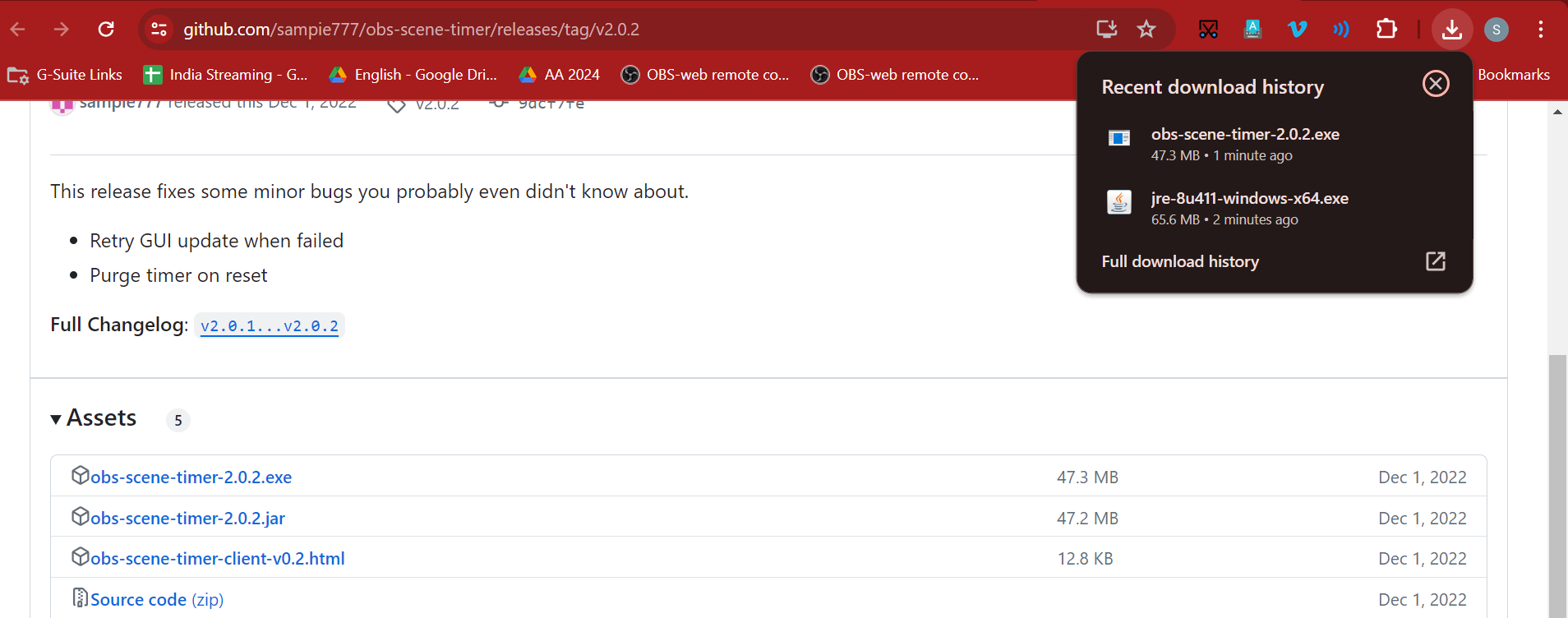
You should download .exe file and you can move it to Desktop so you can open it easily later.
Once you run it it may ask you to install Java Runtime Environment 1.8. In this case go to https://www.java.com/en/download/manual.jsp and download "Windows Offline (64-bit)" version.
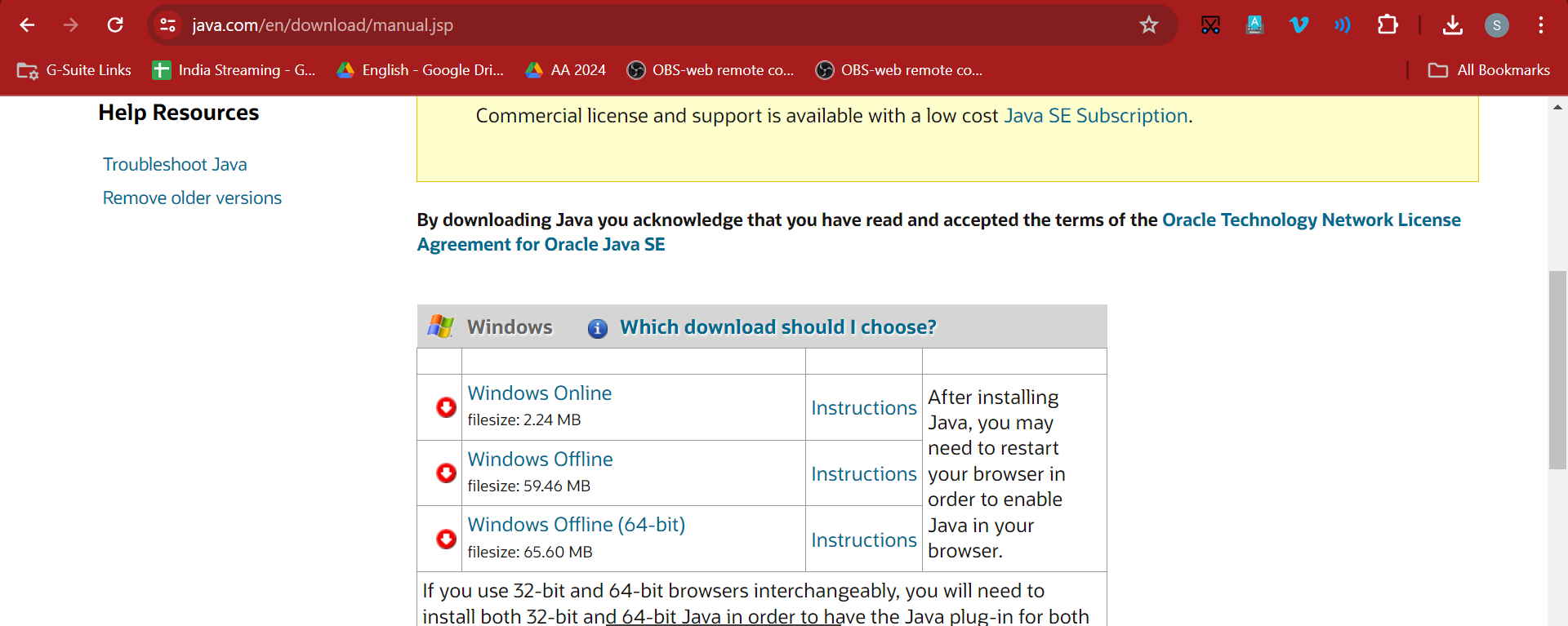
It should take just a minute and you can finally install OBS Scene Timer.
Timer and OBS on the Same Machine
If OBS runs on the same machine as timer you should be done by now, timer should work out of box and will look like this:
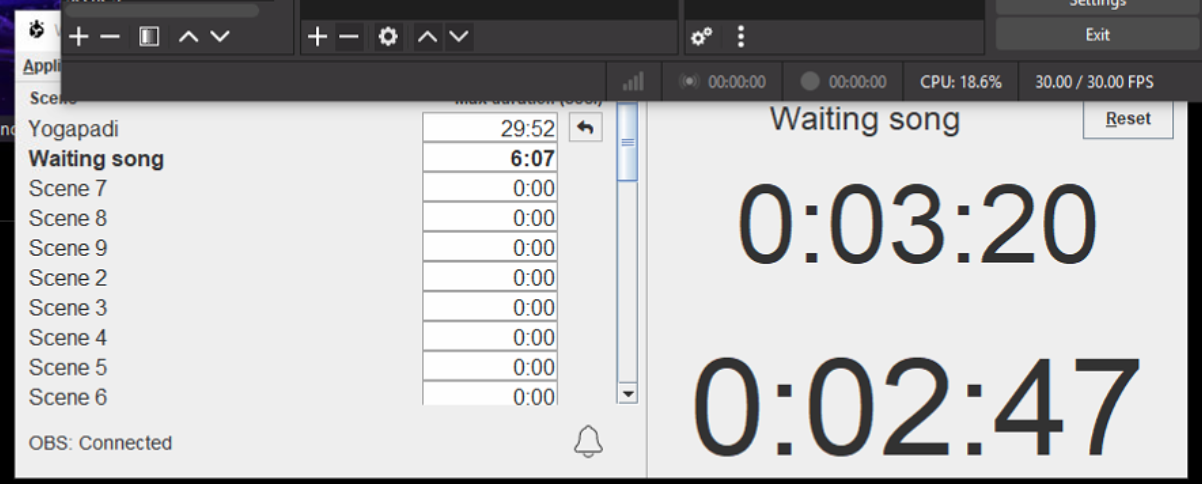
Double check that your OBS version is 28 or above, since OBS versions 27 and bellow do not have websockets out of box. You can install websockets on OBS 27 also, but we faced some issues when websocket connection was behaving funny, so we recommend using newer OBS version.
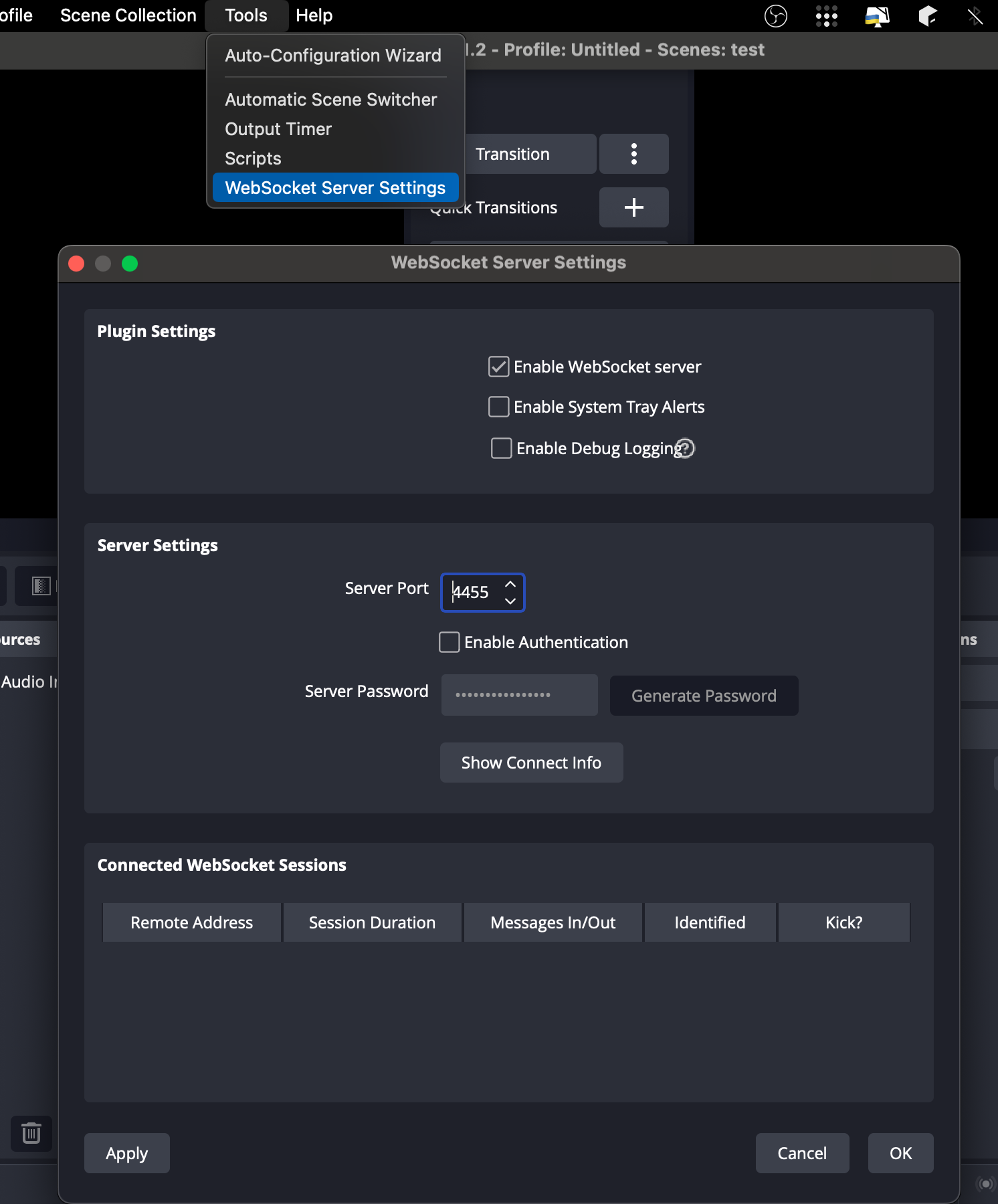
Also double check that WebSockets enabled in OBS (Tools > WebSocket Server Settings > Enable Websocket server)
Timer with Remote OBS
In this case you will need to install timer on both remote server which runs OBS and client where you want to open timer.
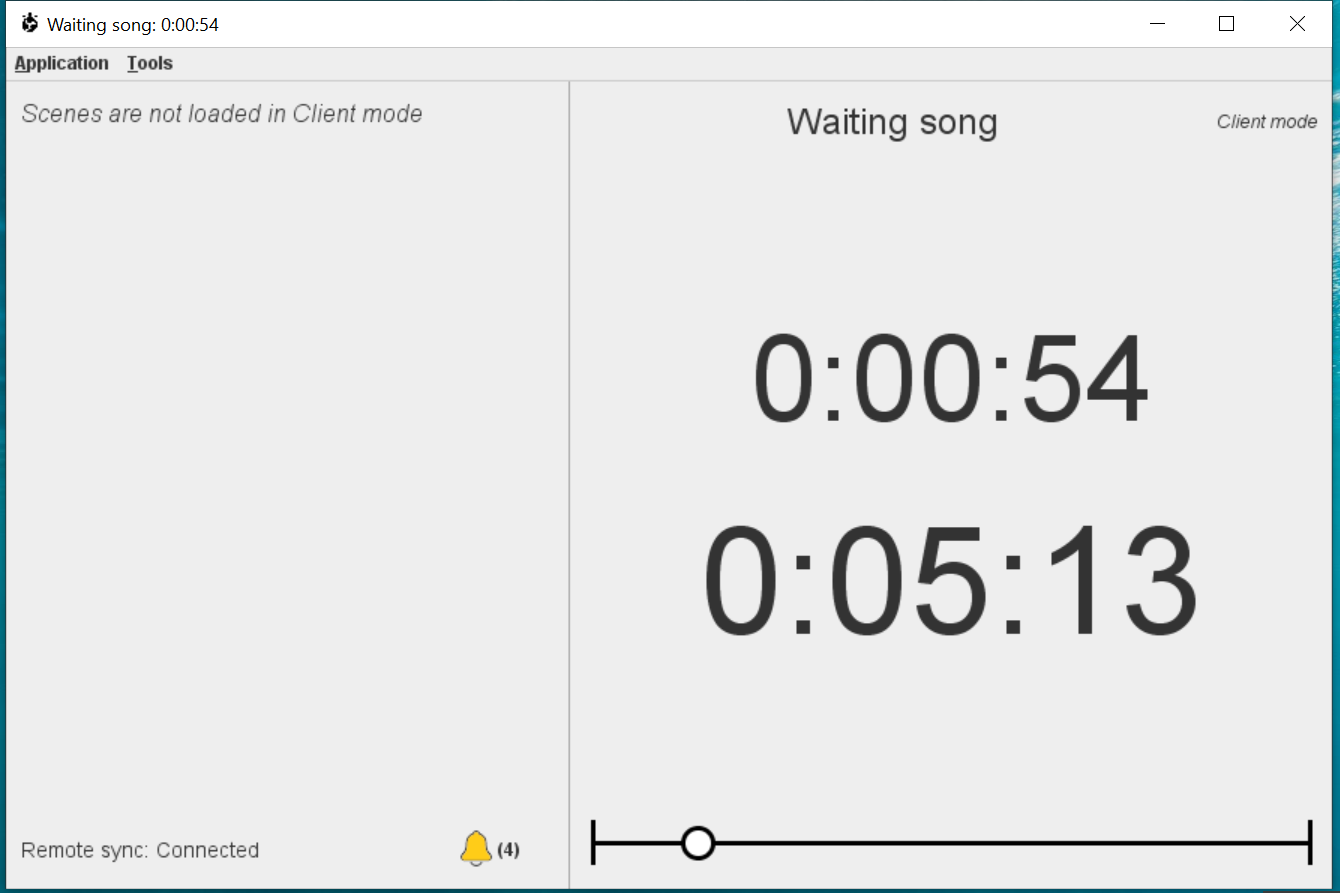
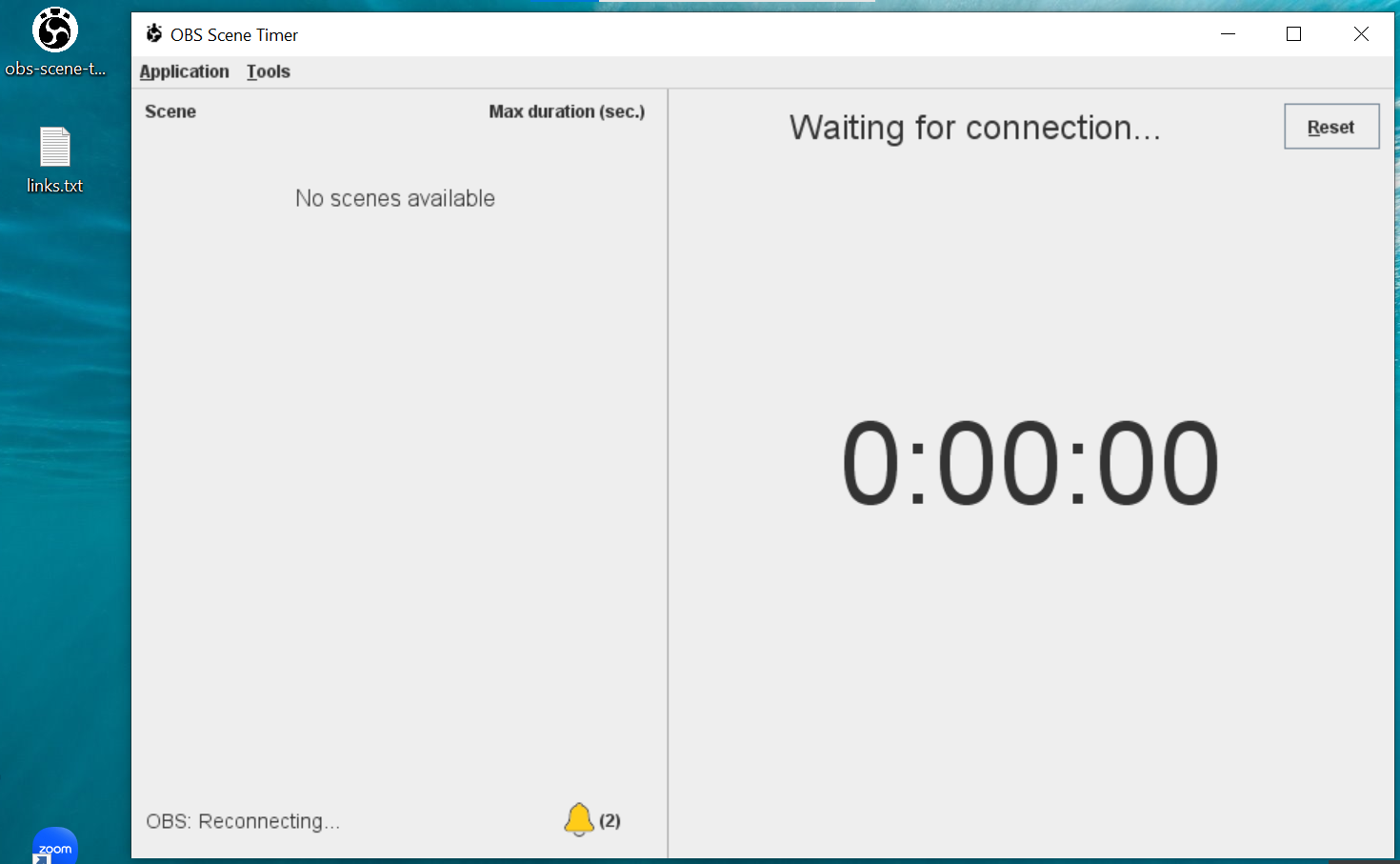
On client will look like this:
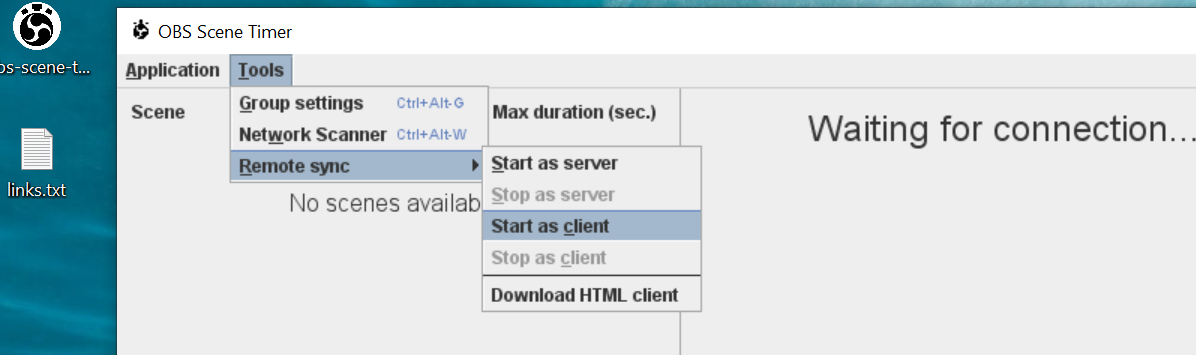
Now let's configure the timer so it is able to connect to the remote OBS. First go to Tools and select "Start as client". On server you should do the same, but selecet "Start as server".
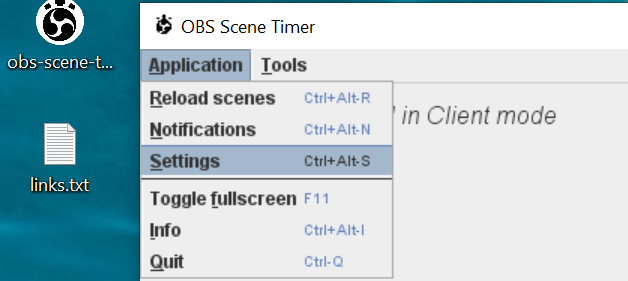
After this on client go to Application > Settings
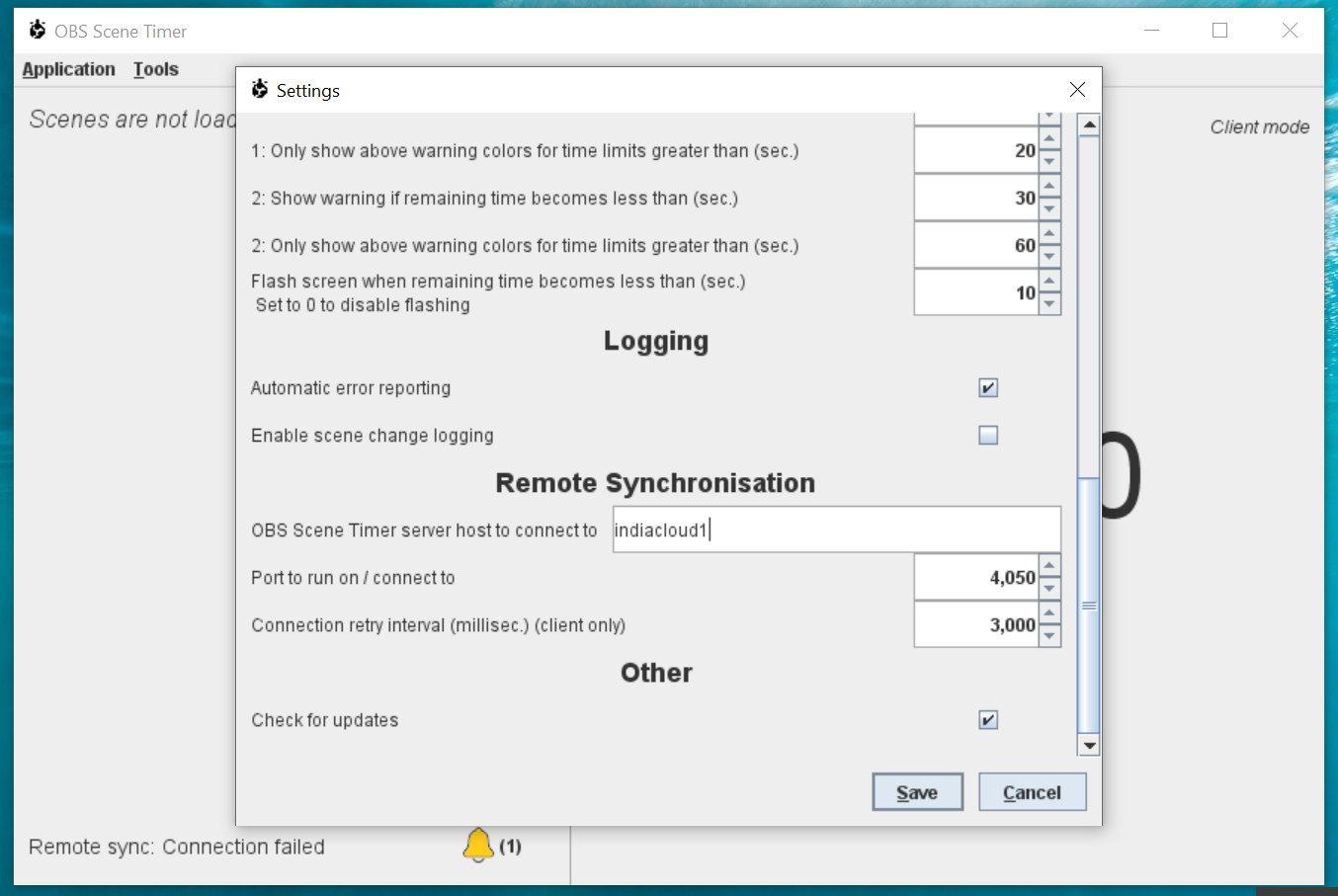
And scroll down to the "Remote Synchronisation" section. Here you need to change OBS server IP to the server IP. We are using Tailscale, so we've put our server's name inside tailscale: "indiacloud1". For port it seems it can be any free port, by default it uses 4050. But make sure your firewall allows connection on this port.
Click "Save" and you should be done. It should pick the data from timer that runs on the server and show it: